seal.ID FAQ

Identification steps

One-Time signing

Cover

Check contract to be signed

Cover

Enter OTP code

Cover

Signature completed

Questions in regards to a specific step

Scan QR Code

Question / Issue
Issue category
Answer

The QR Code is not showing

Internet connectivity

  • Check the connectivity of the device and ensure a stable internet connection

  • It's recommended to use 4g/5g with good reception or a WiFi Network with sufficient bandwith

  • Check if connected to a corporate WiFi since these could restrict access to certain web-functions

Terms & Conditions

Question / Issue
Issue category
Answer

Process can't be continued

User input

  • Ensure that all displayed documents are being accepted by switching the toggles

T&C Cannot be opened

Internet connectivity

  • Check the connectivity of the device and ensure a stable internet connection

  • It's recommended to use 4g/5g with good reception or a WiFi Network with sufficient bandwith

  • Check if connected to a corporate WiFi since these could restrict access to certain web-functions

Introduction

Question / Issue
Issue category
Answer

No "OK, I'm ready" Button is visible

User interface

  • Depending on the integration, the frame, in which the process is rendered, is not high enough to show all relevant information

  • Check if the screen can be scrolled down to make the "OK, I'm ready" Button visible

  • For integrators: Ensure that the Frame in which the process is rendered, provides sufficient room for all elements to be displayed properly

OTP Step

Question / Issue
Issue category
Answer

SMS is not received

Telco connectivity

  • Check proper reception - Not only Internet/WiFi but LTE Signal

  • Check if the phone is in airplane mode and disable it to ensure LTE Signal reception

  • Ensure that the correct phone number has been entere by verifying the displayed digits

  • Click "Resend Code"

Scan of front page

Question / Issue
Issue category
Answer

My document is not being recognized and I cannot proceed with the process

Identification document

  • Ensure that the document used is on the list of supported documents as listed herearrow-up-right

  • Perform the scanning with proper lighting conditions so that the document is clearly visible

  • If possible, perform the identification on a mobile phone with the integrated camera

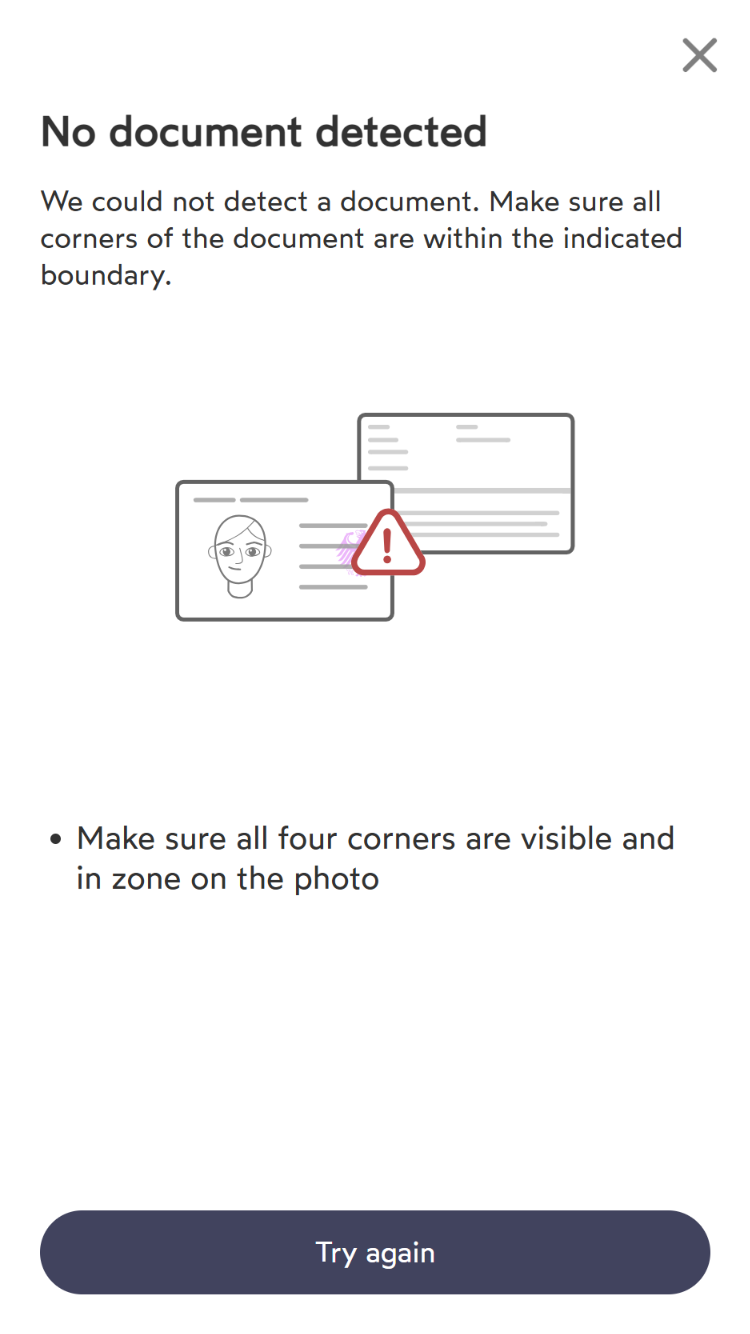
"No document detected" displayed

Environment conditions

  • Ensure proper lighting

    • Provide a bright and evenly lit environment

    • Avoid reflections on the document

    • Avoid over-exposure

  • Hold the document steady

    • If the identification is being done on a mobile phone: Place the document on an even surface to avoid shaking

  • Check the connectivity of the device and ensure a stable internet connection

    • It's recommended to use 4g/5g with good reception or a WiFi Network with sufficient bandwith

    • Check if connected to a corporate WiFi since these could restrict access to certain web-functions

  • Click "Try again" to retry the identification

"Document type not accepted" is being displayed

Identification document

  • Ensure that a supported document is being used

  • Click on the dropdown menu to see for which countries which document types are supported

  • Documents not listed in the dropdown are nut supported for the identification process

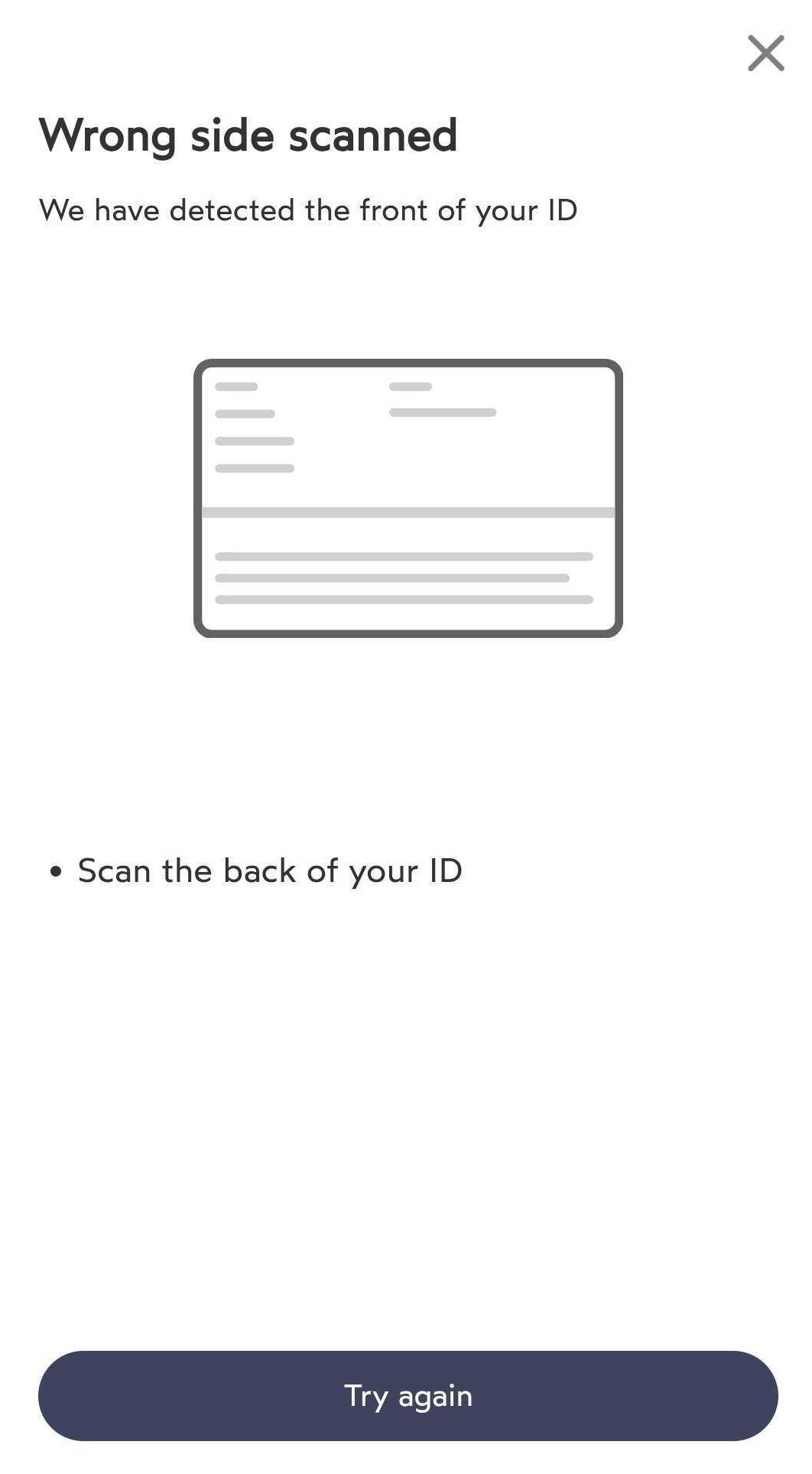
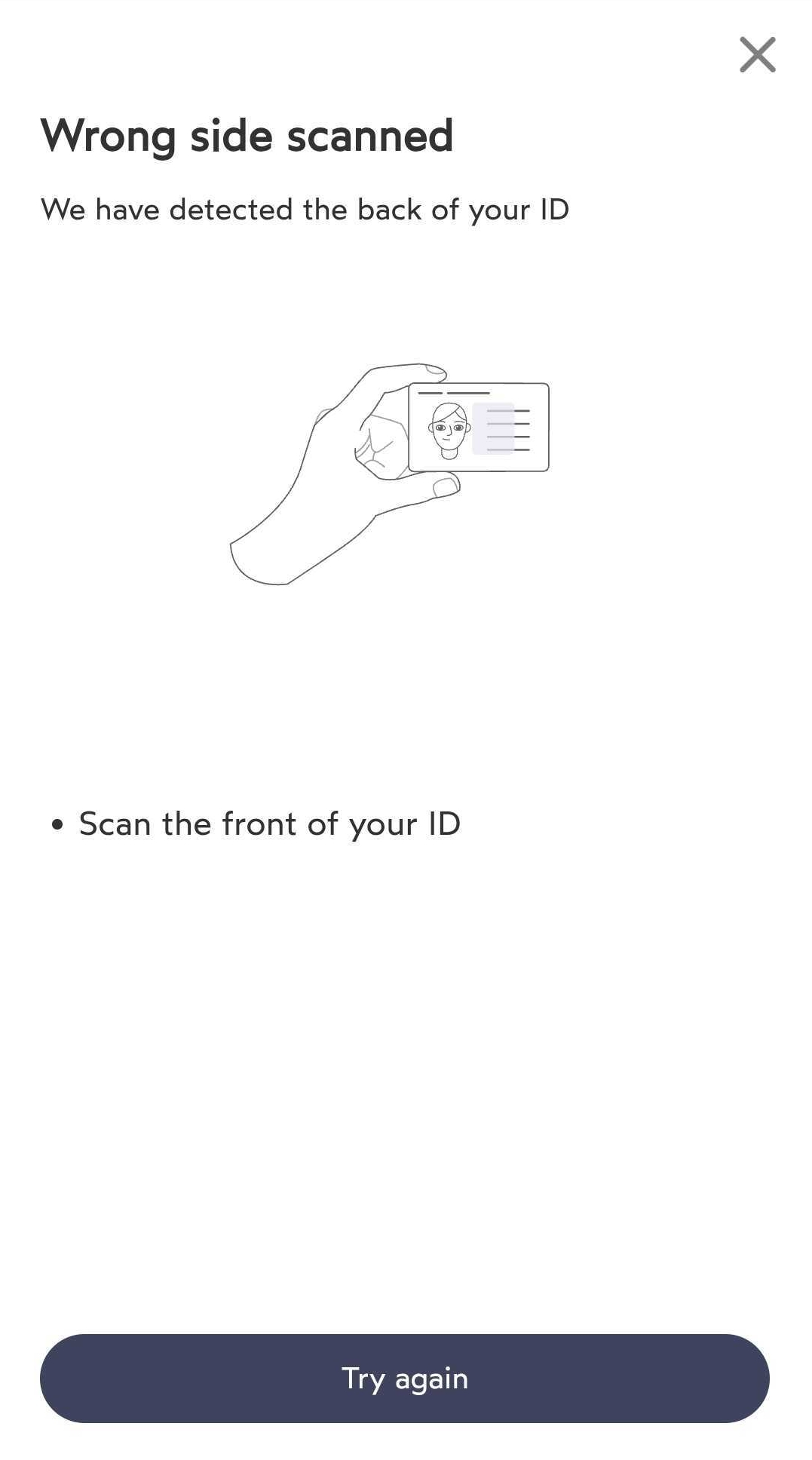
"Wrong side scanned" is being displayed
Identification document

  • Ensure that the correct side of the document is being displayed

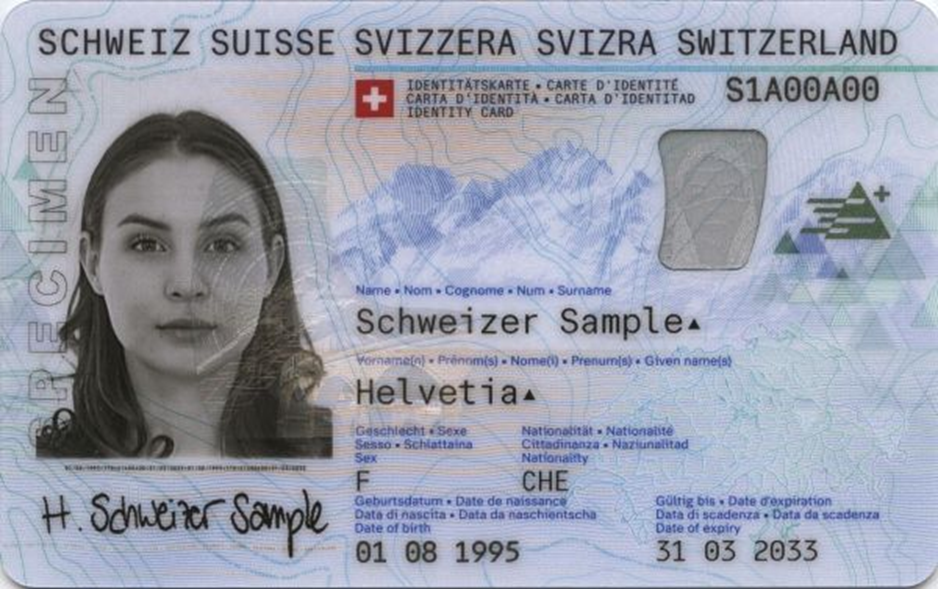
  • For identification cards, the "Front" refers to the side with the Photo and the "Back" refers to the side with the MRZ

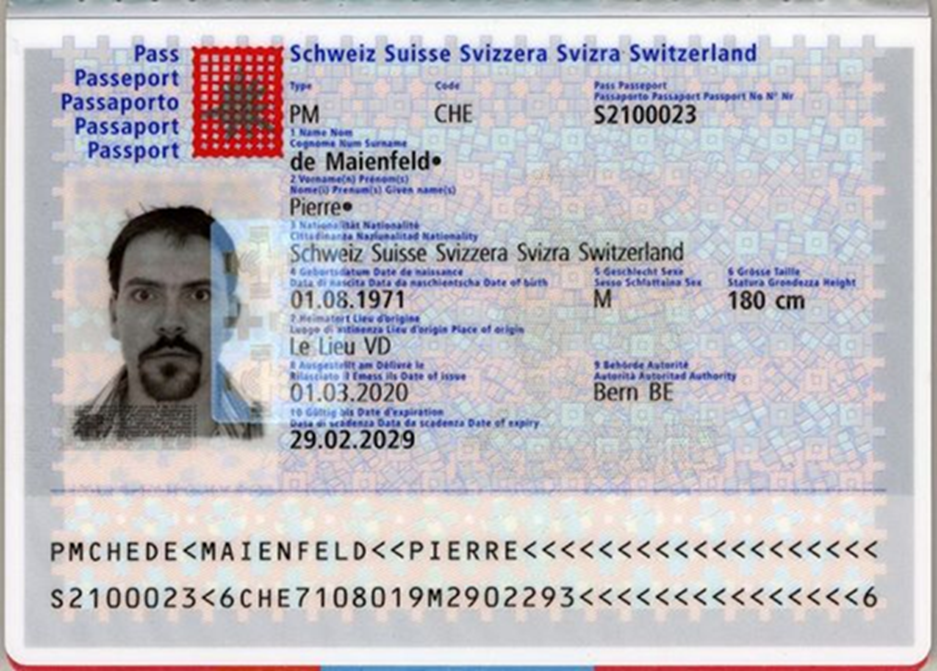
  • For Passports, the "Front" refers to the page where the Photo and MRZ are visible

  • Front-side example for ID card:

  • Front-side example for Passport:

Scan of backside

Question / Issue
Issue category
Answer

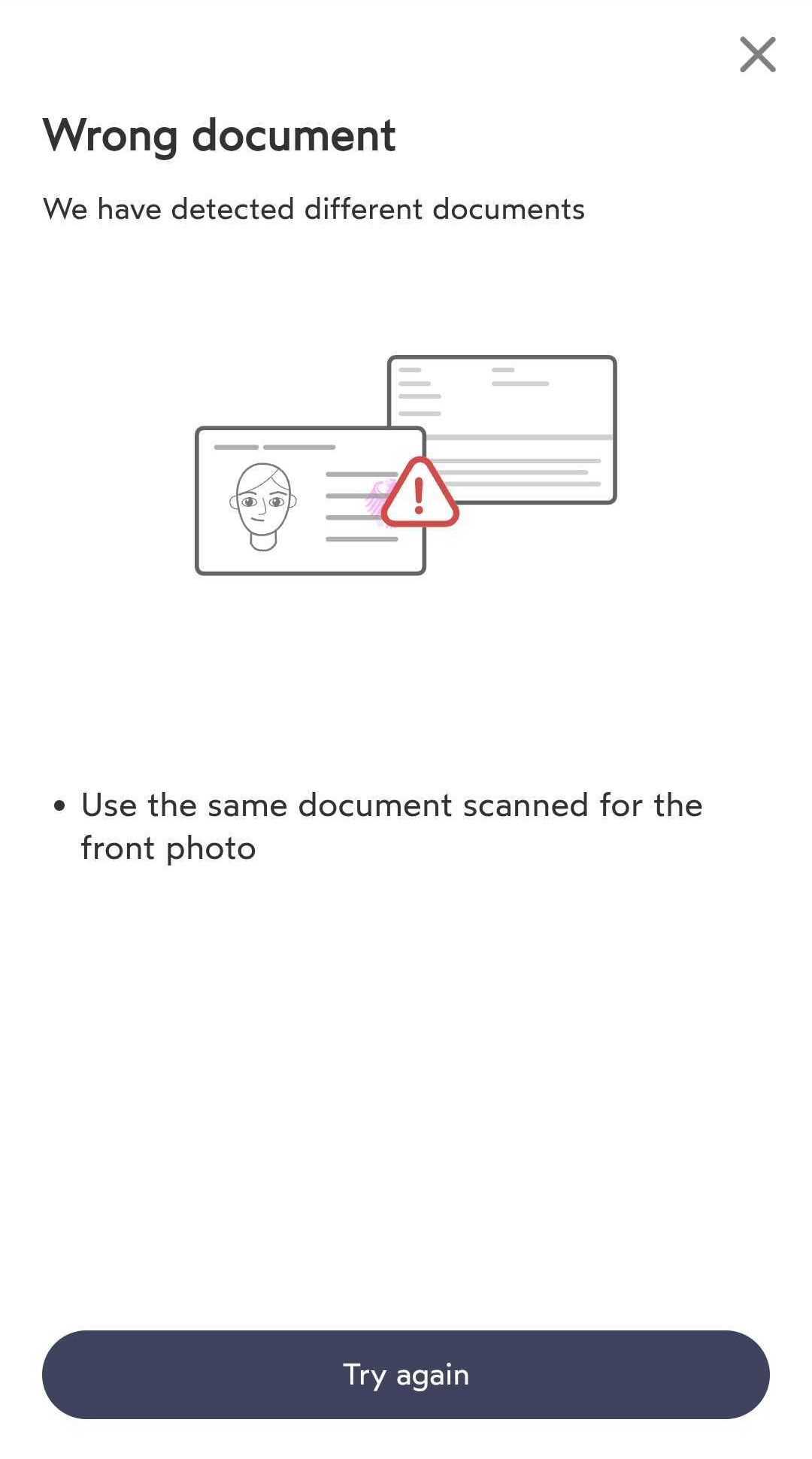
"Wrong document" is being displayed

Identification document

  • This error message indicates that the front-and backside of the scanned document do not match

  • Ensure that for the front- and backside scan, the same document is being used

  • If the issue persists, try performing the identification with a different identification document or retry the identification with the same document

"Wrong side scanned" is being displayed

Identification document

  • Ensure that the correct side of the document is being displayed

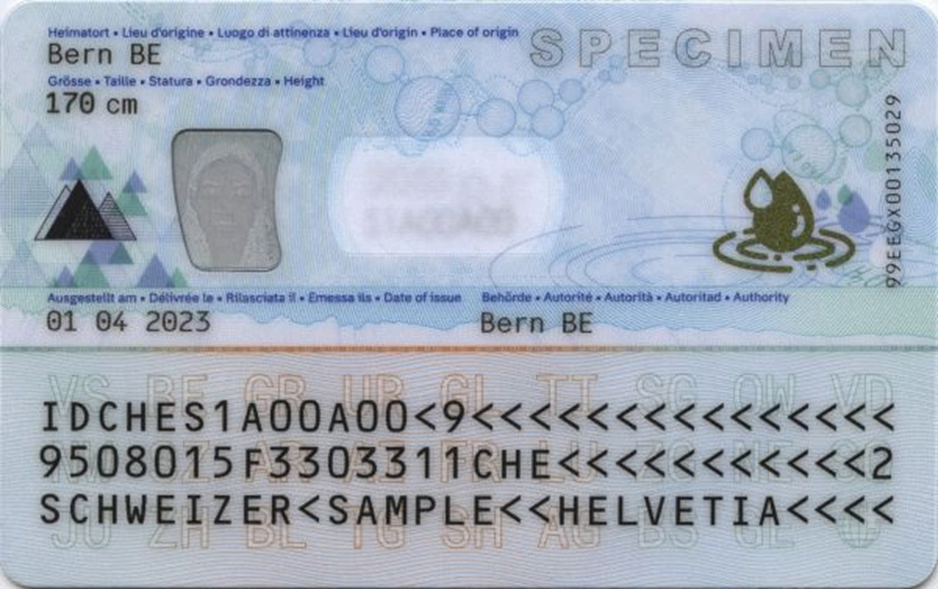
  • For identification cards, the "Front" refers to the side with the Photo and the "Back" refers to the side with the MRZ

  • Back-side example:

Capture of security feature

Question / Issue
Issue category
Answer

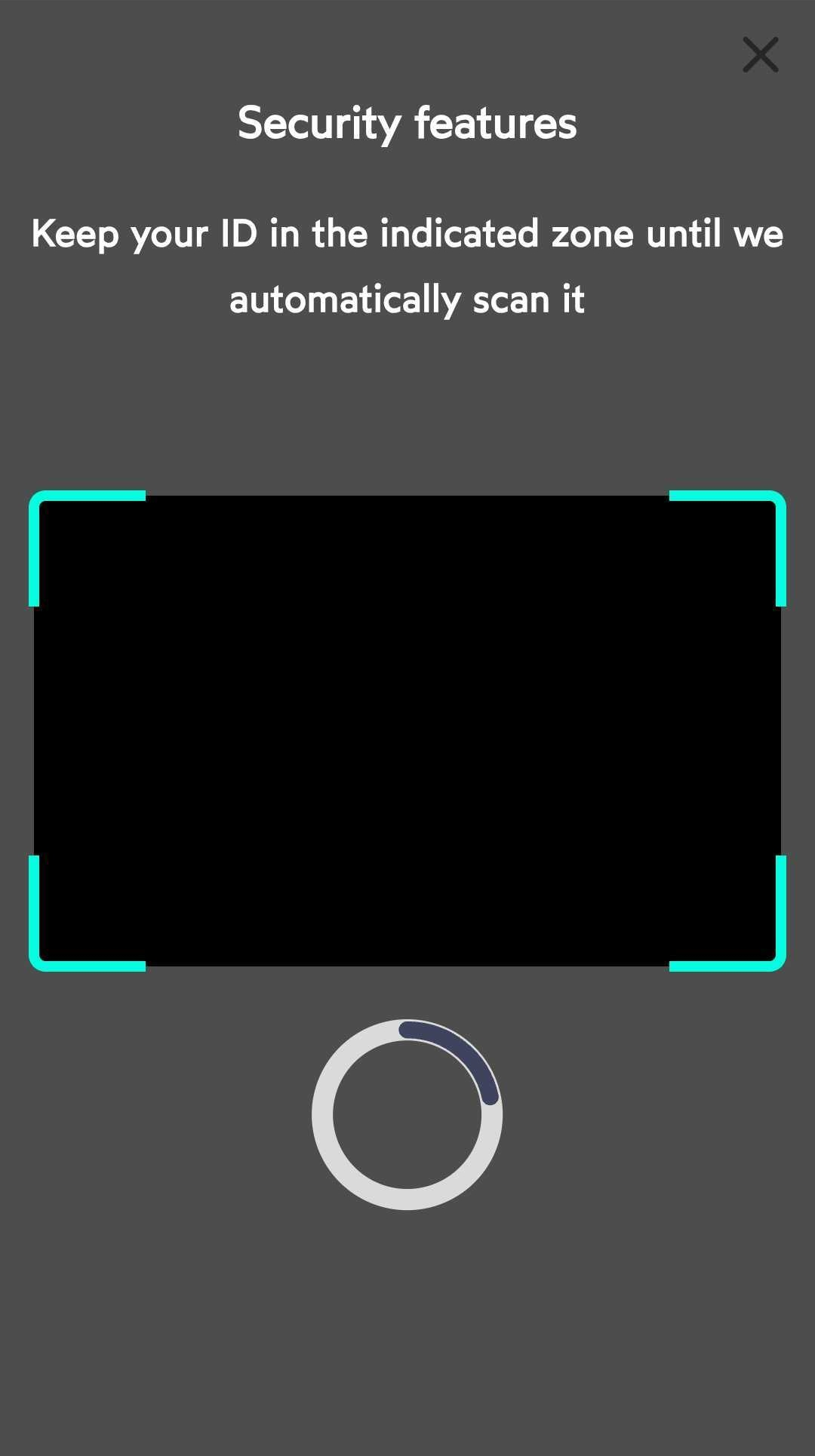
Scan of security features takes a very long time

Internet connectivity

  • In case, the security feature is not immediateley being recognized by the application, the timer will continue running until a time-limit is being reached

    • After the time-limit has been reached, the process automatically continues

  • If the process doesn't continue, even though the time-limit has been reached, check that a stable internet connection is available

    • It's recommended to use 4g/5g with good reception or a WiFi Network with sufficient bandwith

    • Check if connected to a corporate WiFi since these could restrict access to certain web-functions

Start of selfie-step

Question / Issue
Issue category
Answer

No known issues

-

If you encounter an issue in this step, please report it to https://support.mesoneer.io/arrow-up-right

Fullscreen request for selfie

Question / Issue
Issue category
Answer

The fullscreen-mode cannot be activated

Device requirements

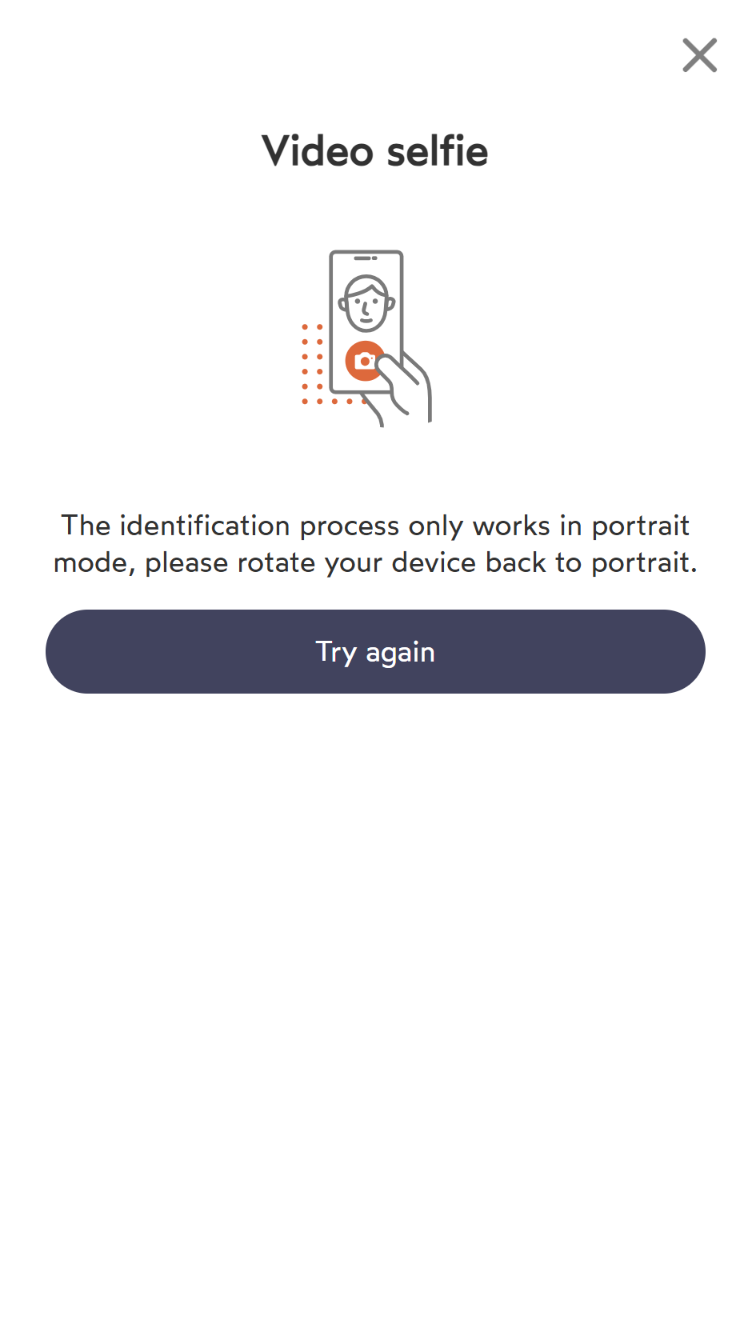
Message regarding the device orientation

Device requirements

  • For mobile phones: Ensure that the device is being held in portrait mode as shown in the image on the error screen

Initial capture of face

Question / Issue
Issue category
Answer

Only a white screen is being shown

Closeup capture of face

Question / Issue
Issue category
Answer

No known issues

-

If you encounter an issue in this step, please report it to https://support.mesoneer.io/arrow-up-right

Submission of data

Question / Issue
Issue category
Answer

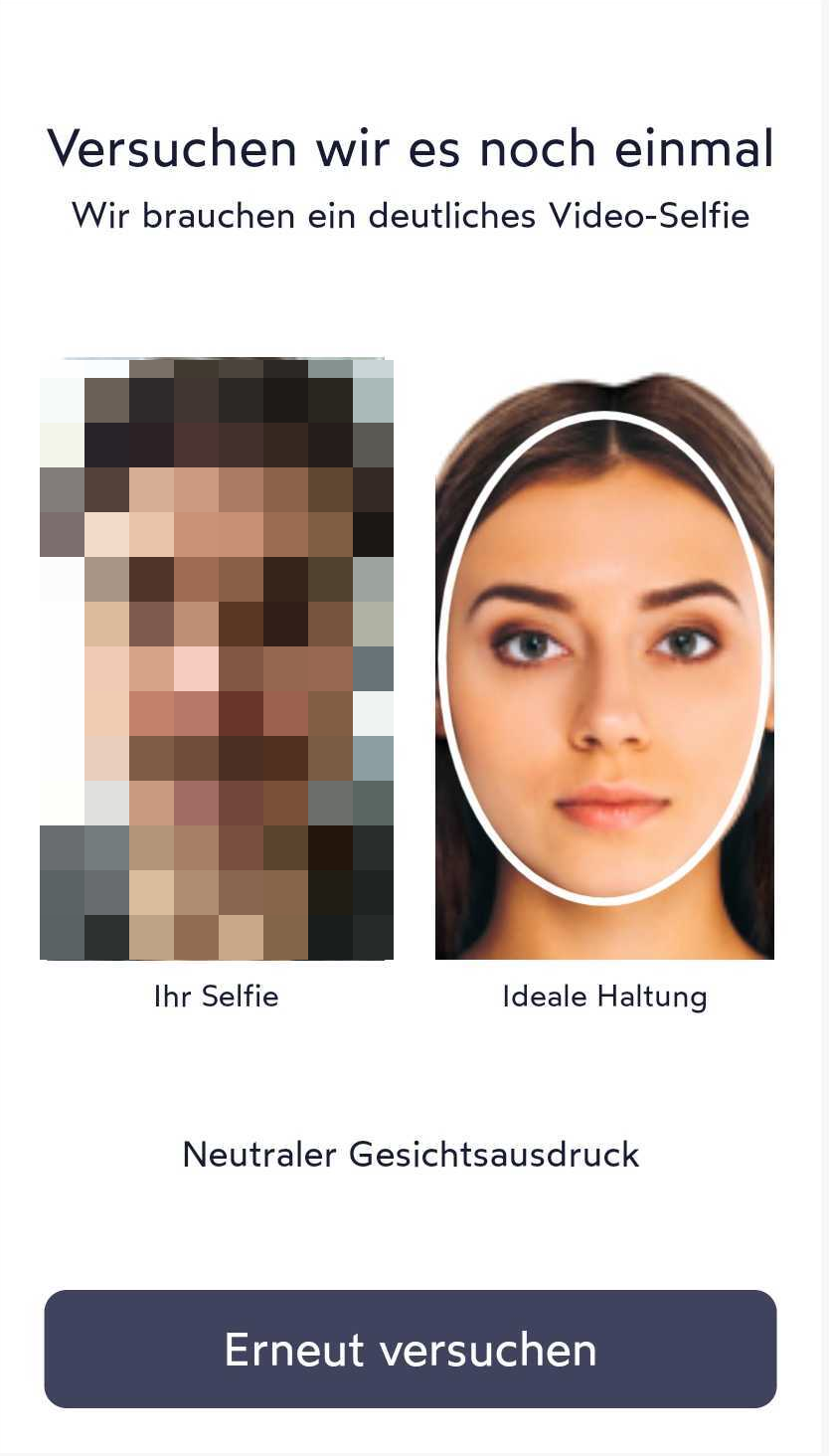
I'm getting a "Let's try again" message mentioning that a clearer Video-Selfie is needed and that the expression should be neutral

Processual

  • Ensure that the person taking the selfie is the same as the one on the identification document that was previously scanned

  • If you are wearing glasses, try to perform the selfie step without the glasses to ensure that the biometric scan is not interferred

  • Perform the selfie with proper lighting conditions so that the facial features are clearly visible

  • Perform the selfie with a uniform background such as a white wall so that the face can be properly distinguished from the background

The process doesn't seem to continue

Internet connectivity

  • Check the connectivity of the device and ensure a stable internet connection

  • It's recommended to use 4g/5g with good reception or a WiFi Network with sufficient bandwith

  • Check if connected to a corporate WiFi since these could restrict access to certain web-functions

Completion of identification

Question / Issue
Issue category
Answer

The upload/encryption takes a verly long time

Internet connectivity

  • Check the connectivity of the device and ensure a stable internet connection

  • It's recommended to use 4g/5g with good reception or a WiFi Network with sufficient bandwith

  • Check if connected to a corporate WiFi since these could restrict access to certain web-functions

Check contract to be signed

Question / Issue
Issue category
Answer

No known issues

-

If you encounter an issue in this step, please report it to https://support.mesoneer.io/arrow-up-right

Enter OTP code

Question / Issue
Issue category
Answer

The upload/encryption takes a verly long time

Internet connectivity

  • Check proper reception - Not only Internet/WiFi but LTE Signal

  • Check if the phone is in airplane mode and disable it to ensure LTE Signal reception

  • Ensure that the correct phone number has been entere by verifying the displayed digits

  • Click "Resend Code"

Signature completed

Question / Issue
Issue category
Answer

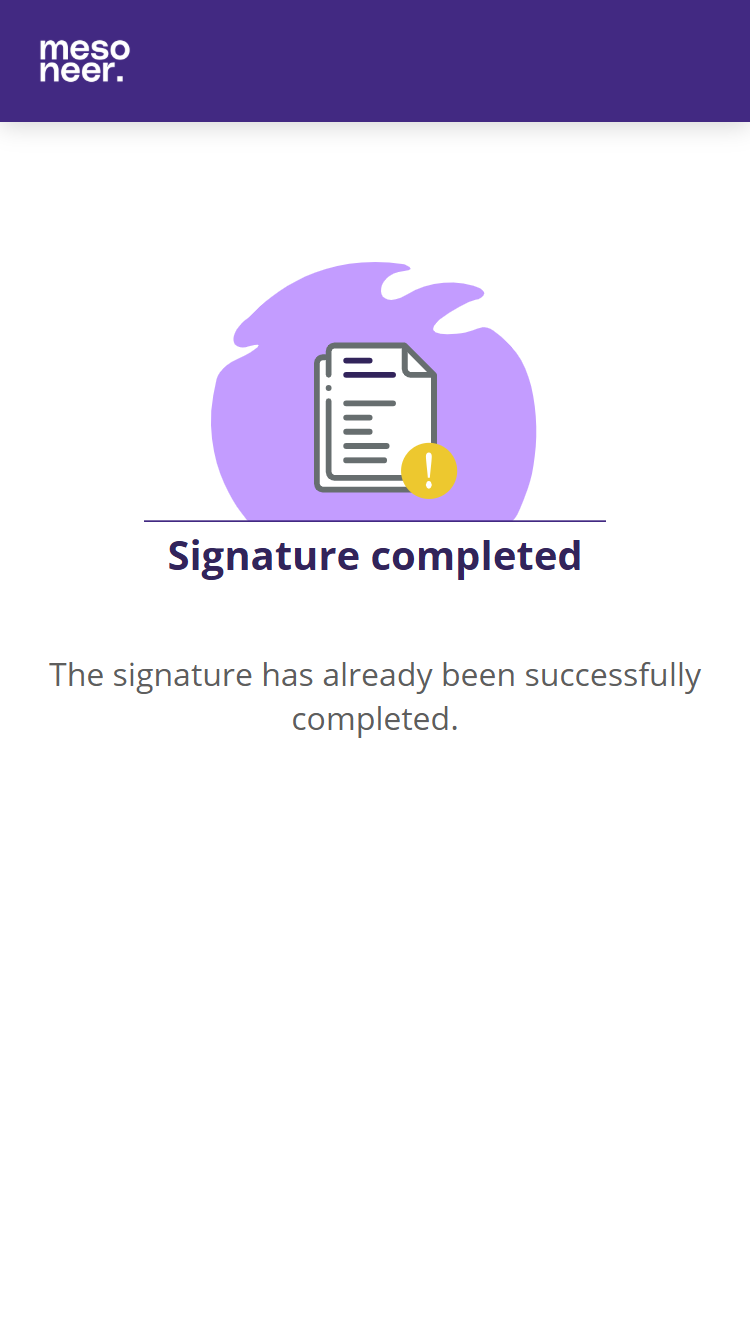
"Signature completed" is being displayed

Processual

  • The signature has already been successfully performed and the signing link cannot be accessed anymore

General questions

No.
Question?
Answer

1

Is there a minimum age for the identification through AutoIdent or VideoIdent?

There is no age restriction in place for the AutoIdent or VideoIdent process. The contractual partner is responsible for checking the minimum age for the contractual partner

Last updated