camera permission
Following a description about how the camera access can be granted, declined and how it behaves in detail.
The permissions are firstly defined in the browser settings itself. Depending on what is configured there it will follow a different handling of requesting the camera access.
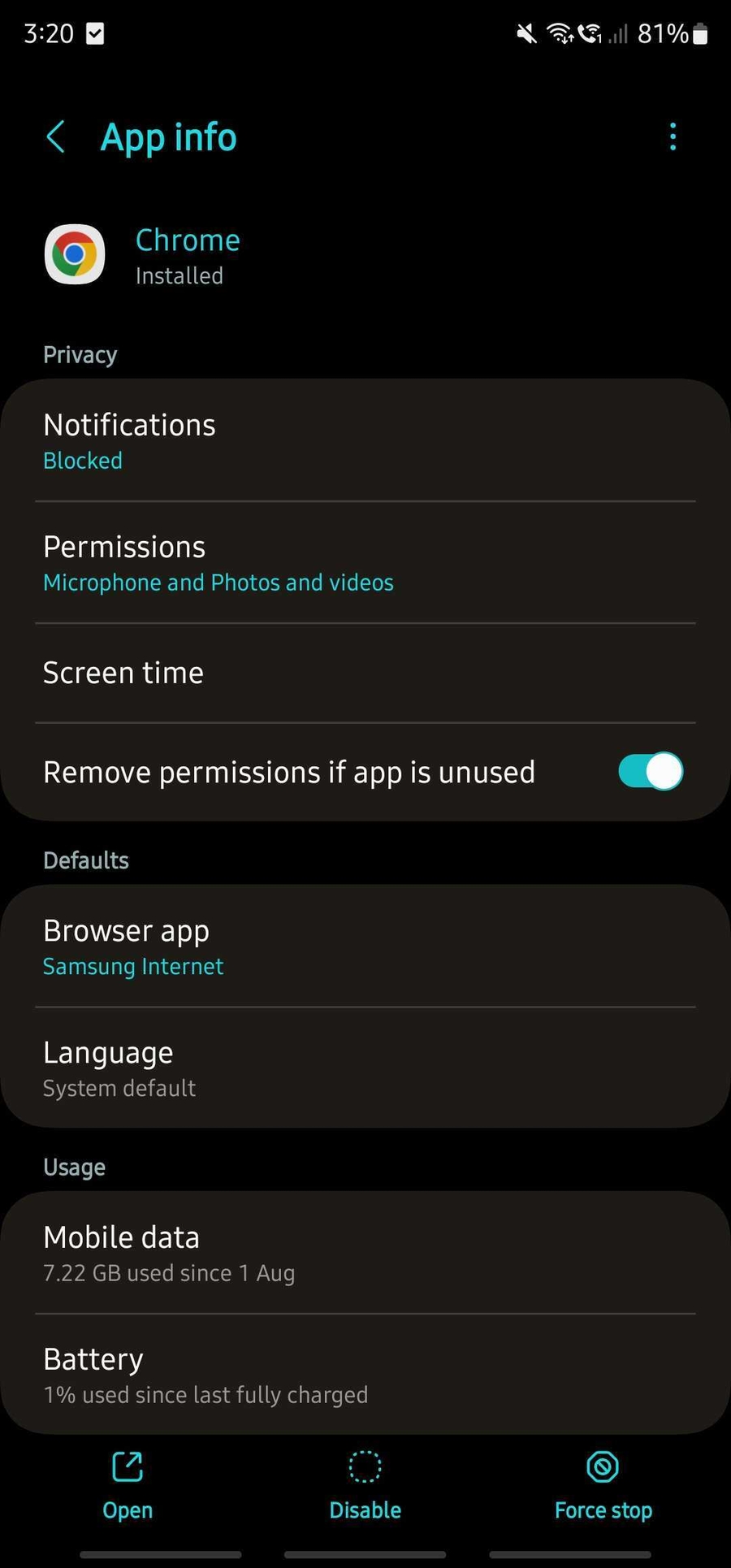
Open "Settings" then click on "Apps" and move on with your preferred browser e.g. "Chrome", "Samsung Internet")
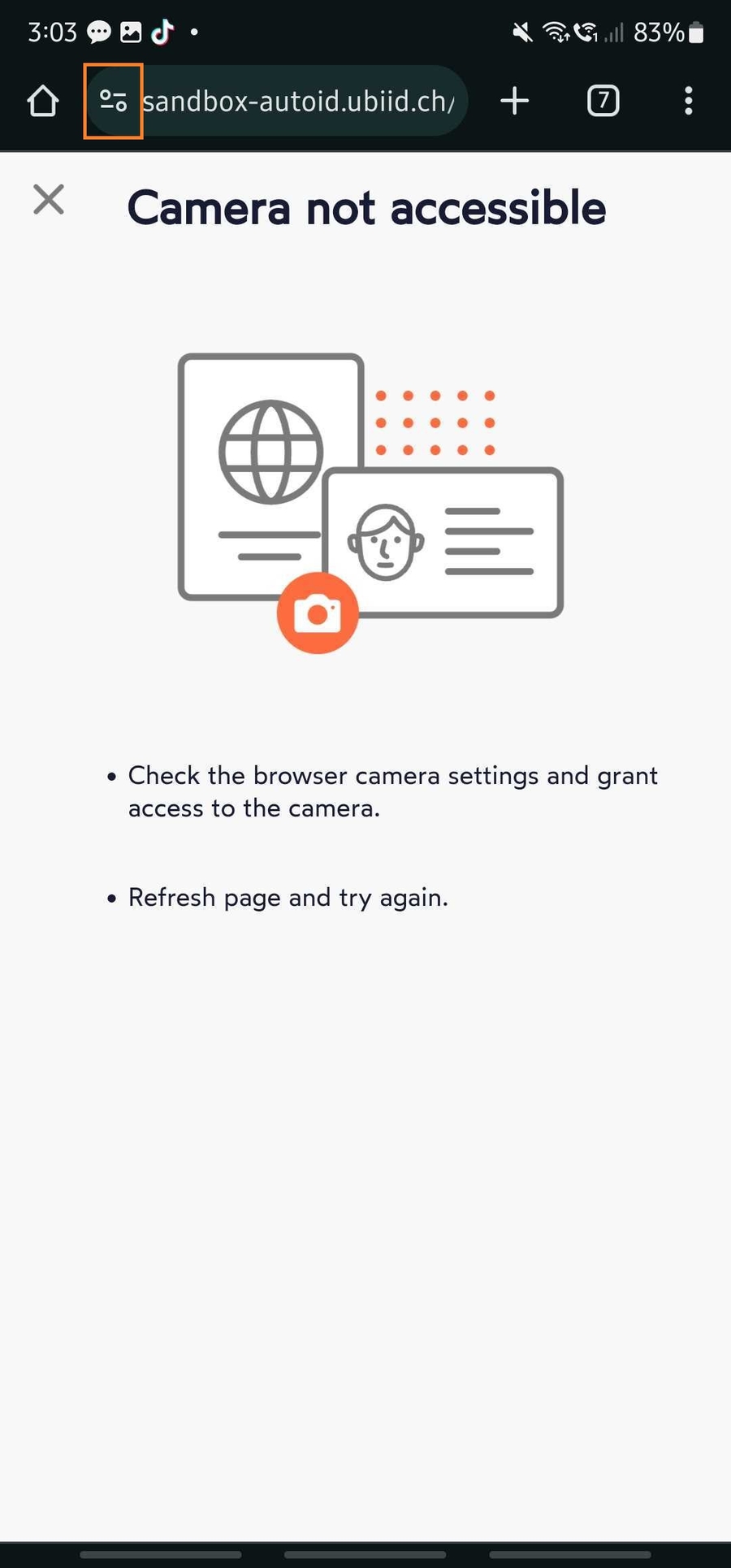
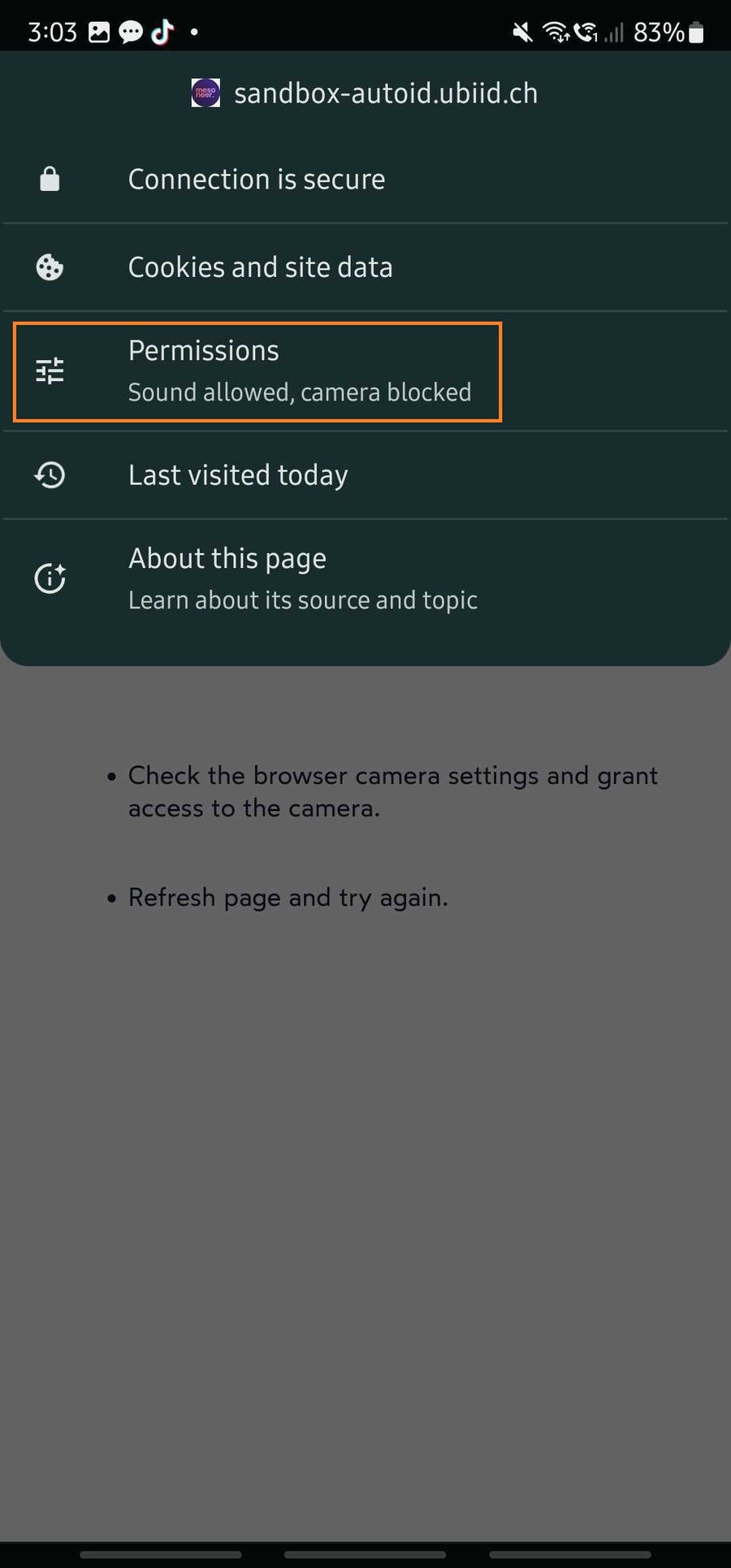
On the left side of the url input field there is an icon. If this is opened the permission to the camera should be shown directly as the browser recognize that the site requires camera permissions.
Android (Chrome)
Allow only while using the app
With this app-setting Chrome will ask the user to allow the camera access on the first time of accessing the site. If the user allows the camera access the system will not ask in future anymore but accesses the camera directly without the user having to grant the permission.
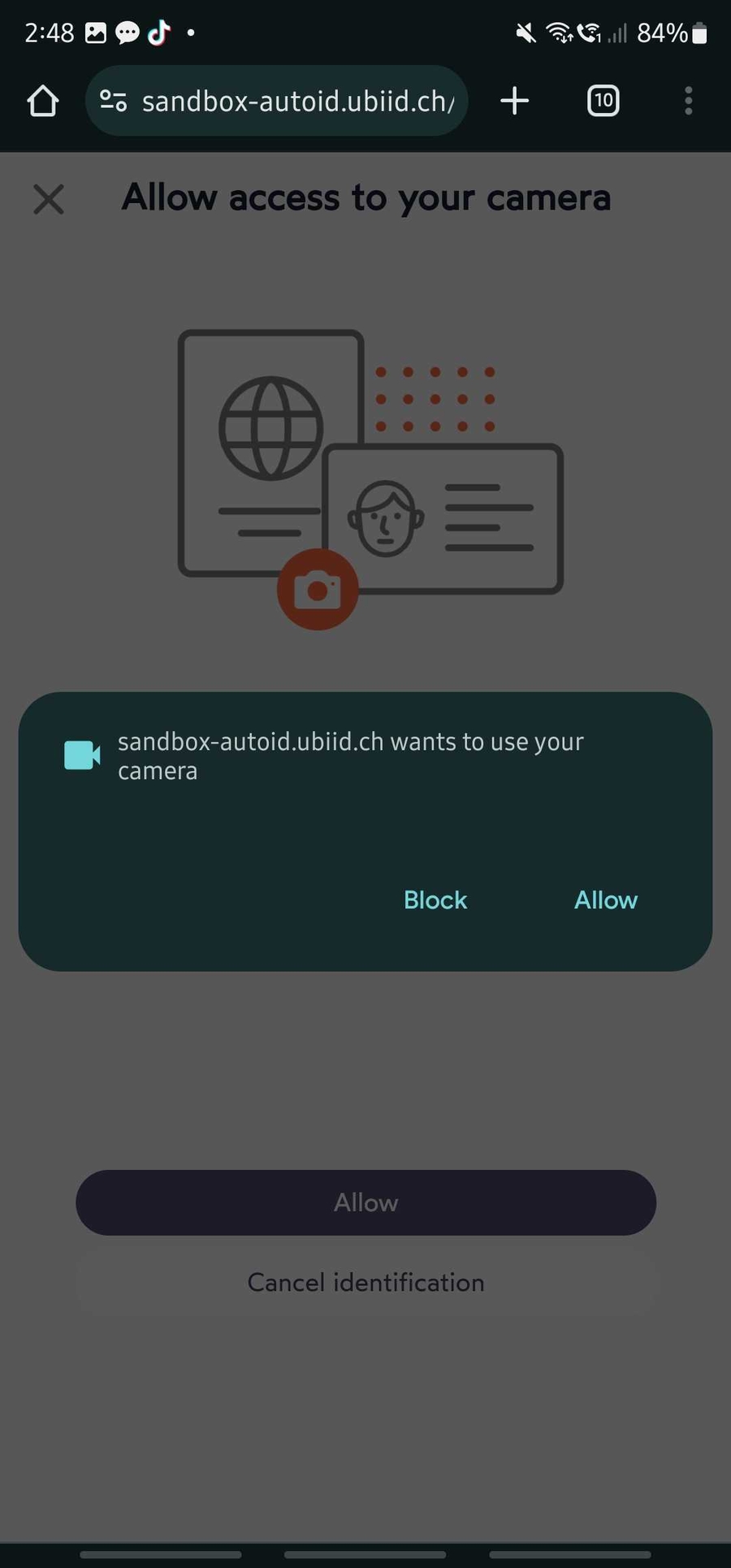
When the camera access gets blocked then this will be saved until this is changed in the browser-setting of the site and has to be changed in the browser as this setting is overriding the app-setting.
Ask every time
When using this app-setting Chrome will ask the user for the permission again same as in the previous option but this time there will be a 2nd pop-up window where the user can select and directly change the current app-settings with the selection.
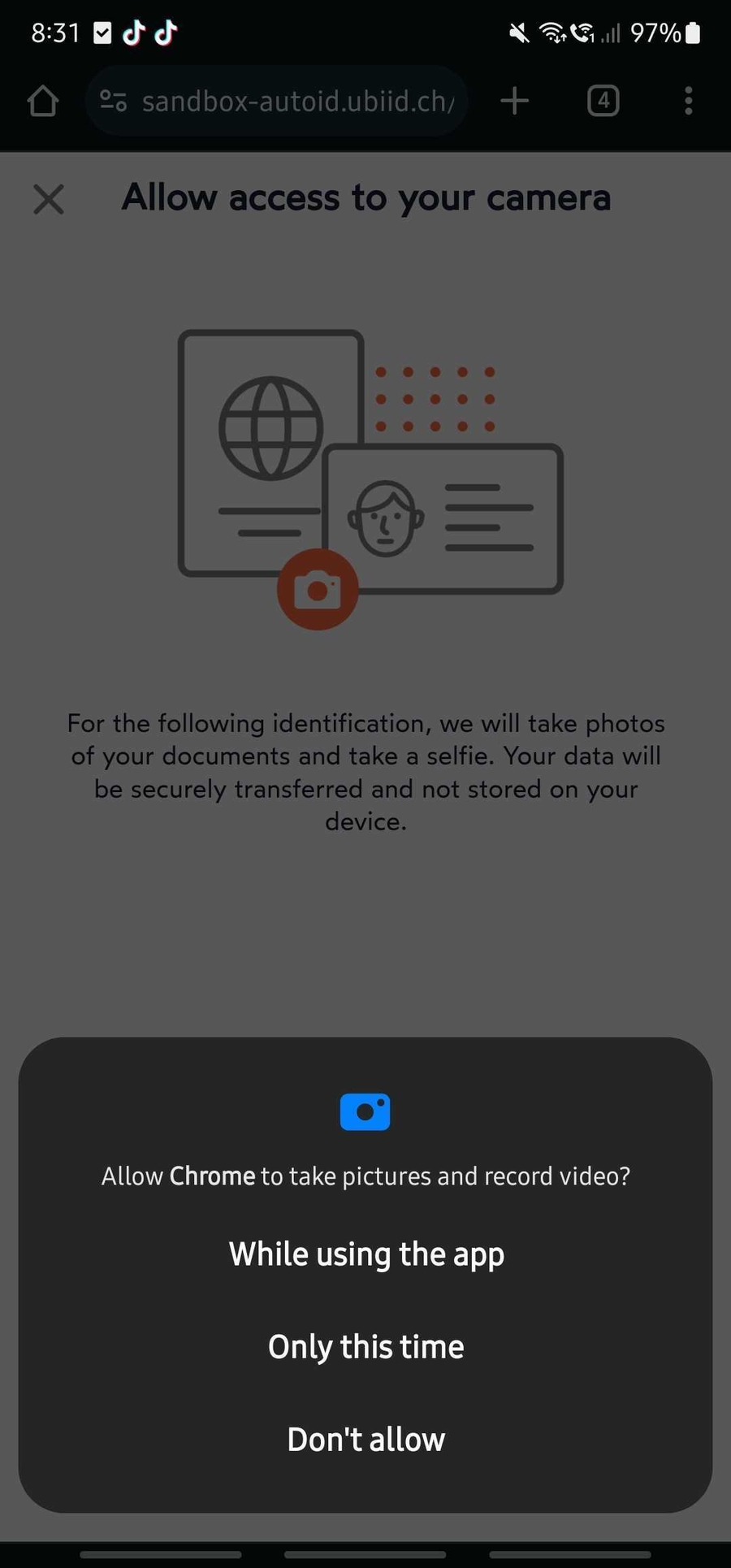
While using the app The current app-settings will be overwritten and set to "Allow only while using the app".
If this is not wished then this must be changed in the app-settings itself as the request window will not pop-up anymore when this was selected.
Only this time This setting actually is the associated one with the app-setting of this paragraph. Once the browser is shutted down completely and a (new) process is (re-)opened the permissions will be asked again. This can be tested if the user opens the app-settings and force-close the app.
Don't allow If this option is selected the browser will ask the client another time and the 2nd selection will count. When the access gets declined then the current app-settings will be overwritten and set to "Don't Allow".
If this is not wished then this must be changed in the app-settings itself as the request window will not pop-up anymore when this was selected.
Don’t allow
If the user has this setting configured then the device system will still ask for the camera access.
As this pop-up still comes up the user can decide whether he wants to override the app-settings in this step or decline finally. If "Don't allow" is selected the browser will not ask in future cases anymore.
Beware: Whenever the user has already declined the access once and they decide to change this setting they cannot go from "Don't allow" to "ask every time" directly. The setting has to be set to "Allow only while using this app" first and the camera has to be opened at least once before they can switch the setting to "ask every time".
As the browser cannot trigger the request after the setting gets changed from "Don't allow" directly to "ask every time" this extra step has to be taken.
Android (Samsung Internet)
Beware: The samsung internet is not behaving consistent enough. In some cases it can be that the browser still will not request for permission any further.
If this happens and both browser and app-settings are configured correctly we recommend clearing the browser data completely. Please note that this will affect all data the user has stored for this browser.
The other option would be to proceed with the process on the Chrome browser and consider the documentation about it above.
Allow only while using the app
If the camera access for the safari is set to "allow" the camera will directly be accessed without further request.
Ask every time
With this setting active the system will ask the user to allow the camera access again same as in Chrome with the pop-up and the three options. If the access is denied then you will need to re-activate the permission in the browser-settings and additionally may delete the cookies. Then the browser will try to request the access again.
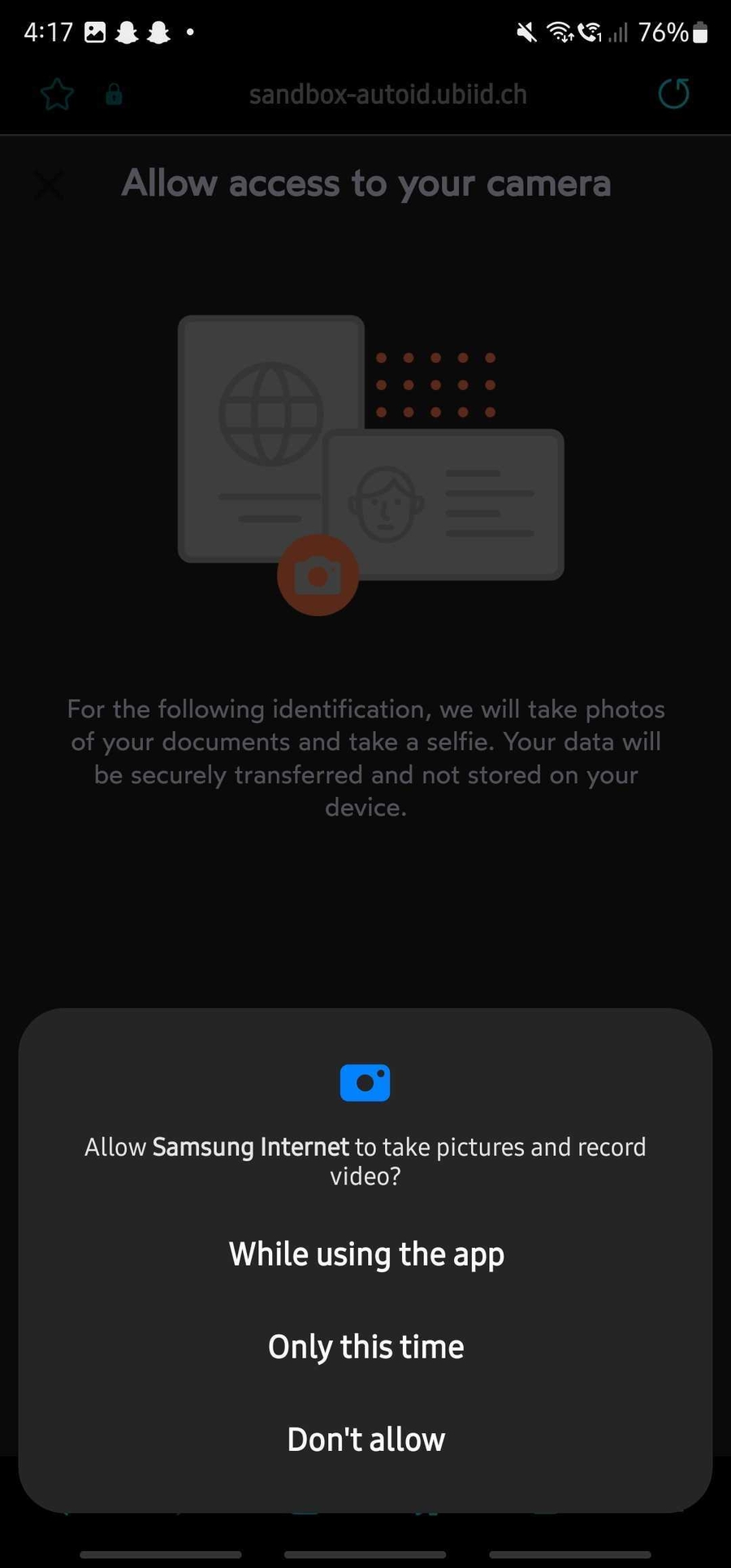
Don't Allow
When this is configured then the browser will request for the access anyway and the user can decide to allow after all. If the user clicks on allow the three options of the device system will appear again.
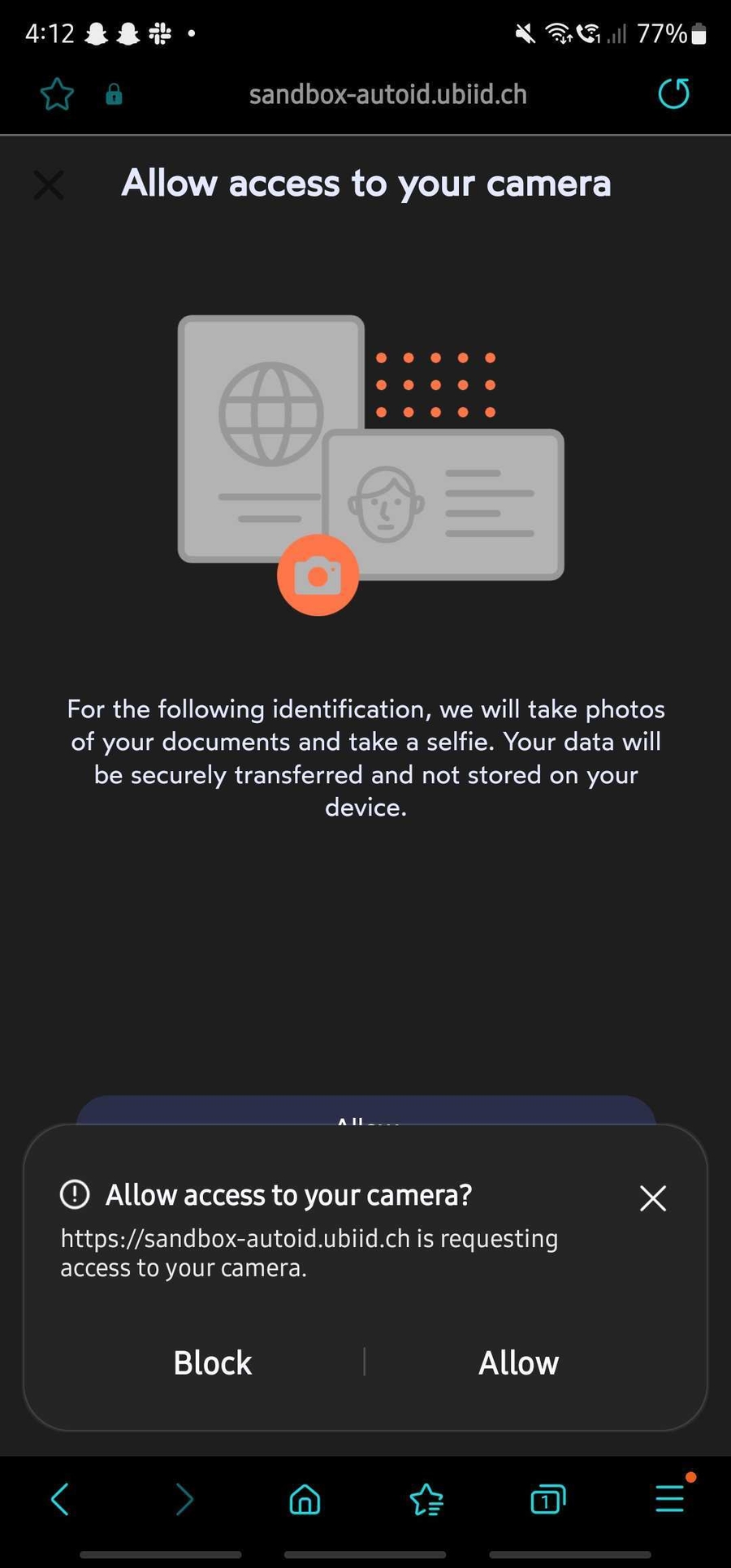
If the user clicks on "Block" in the first request then the browser will not ask in future anymore until the user change the settings of the browser or the app.
iOS
On the iOS system the camera access is simpler to explain. The permission set on the app-settings will always apply on the app unless the user has explicitly set other permission for the camera access for the concerning website. If that is the case then the permission of the website-settings overrides the app-settings.
So if the setting is not according to the clients expectation firstly the website-setting must be checked and then the app-settings. If both settings are updated to the users wishes the system will work accordingly. Though if there is a mismatch of a specific website and the app-settings this will be displayed in the app-settings as well.
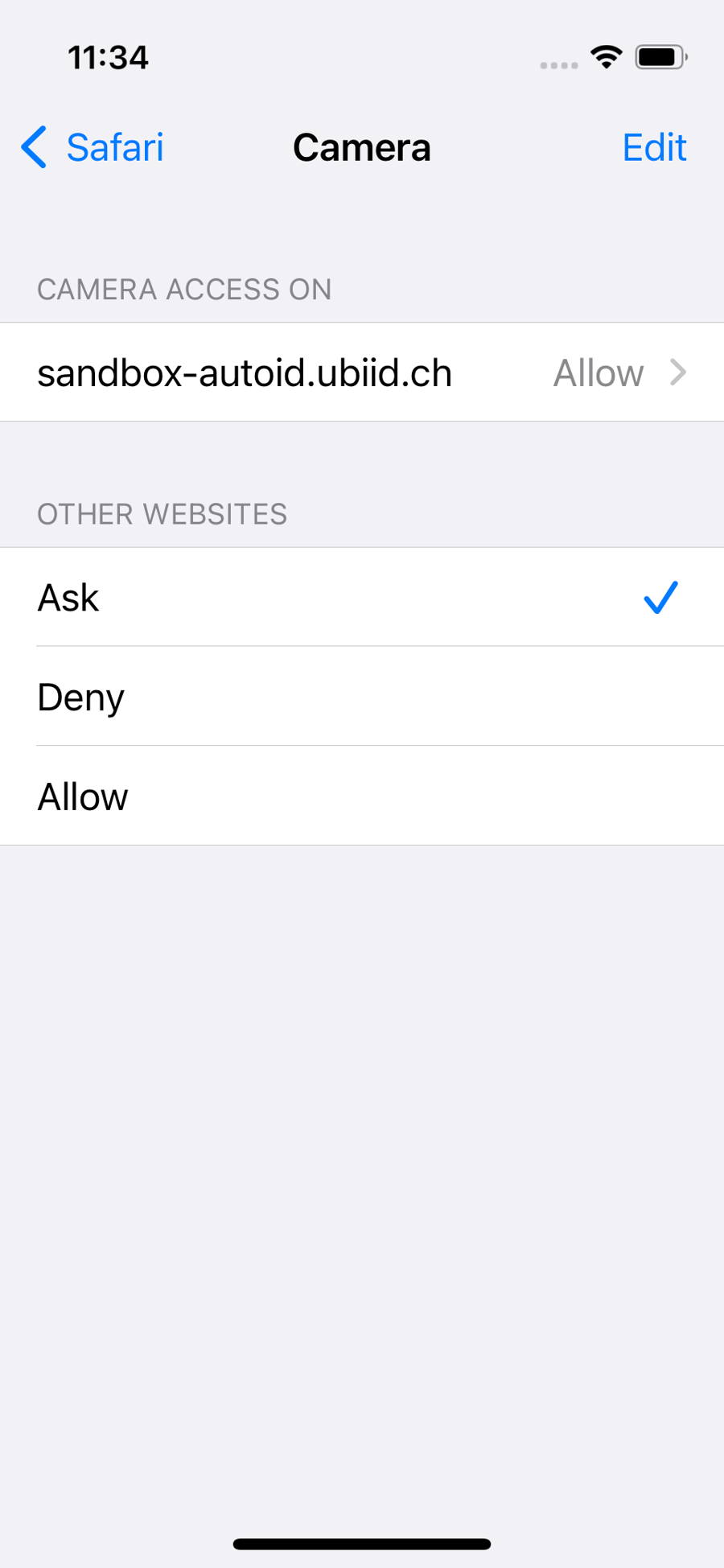
Allow
If the camera access for the safari is set to "allow" the camera will directly be accessed without further request.
Ask
With this setting the customer has to grant the permission to access the camera on each attempt of starting the scanning. If the user clicks on "Allow" first and proceeds with "Cancel" then the failure page is shown where the user is instructed to check the permissions and reload the page. 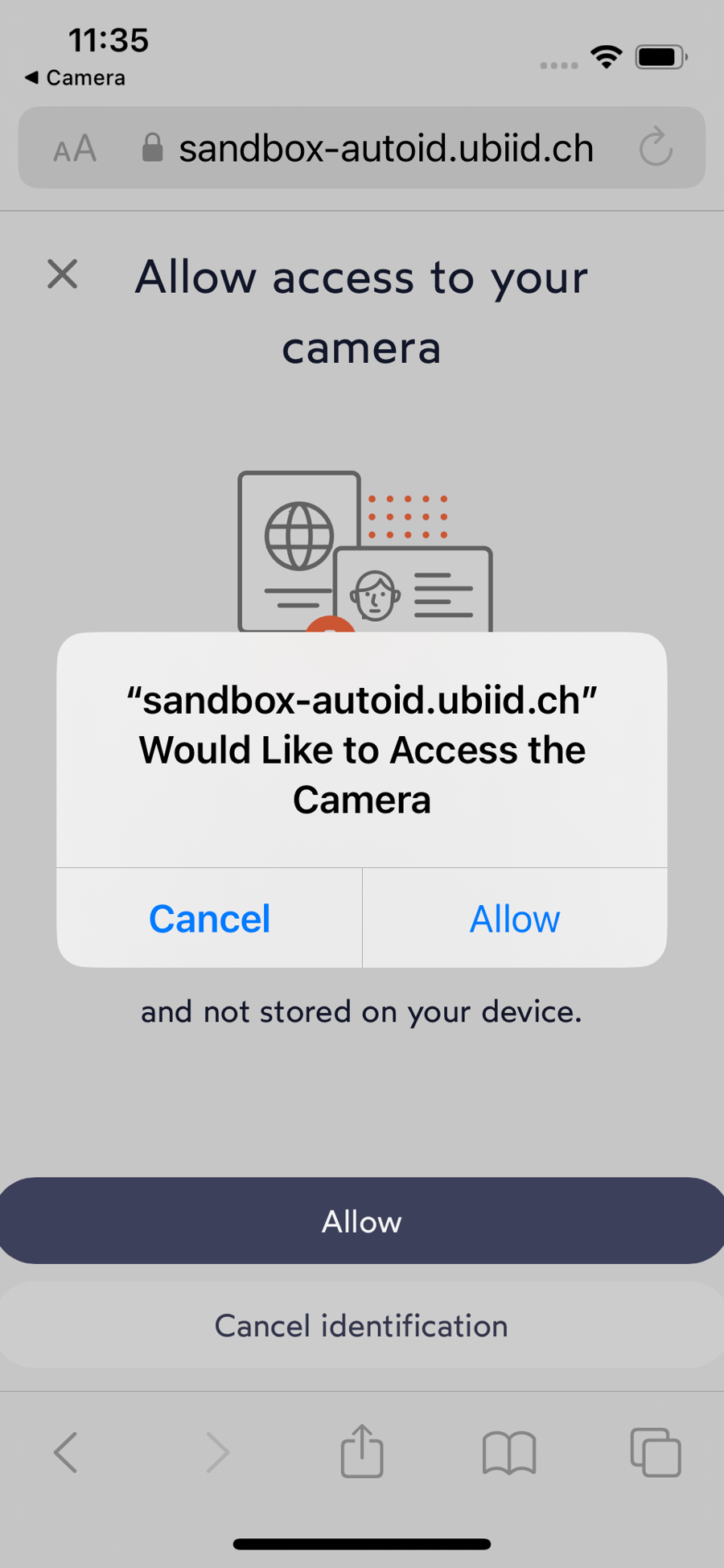
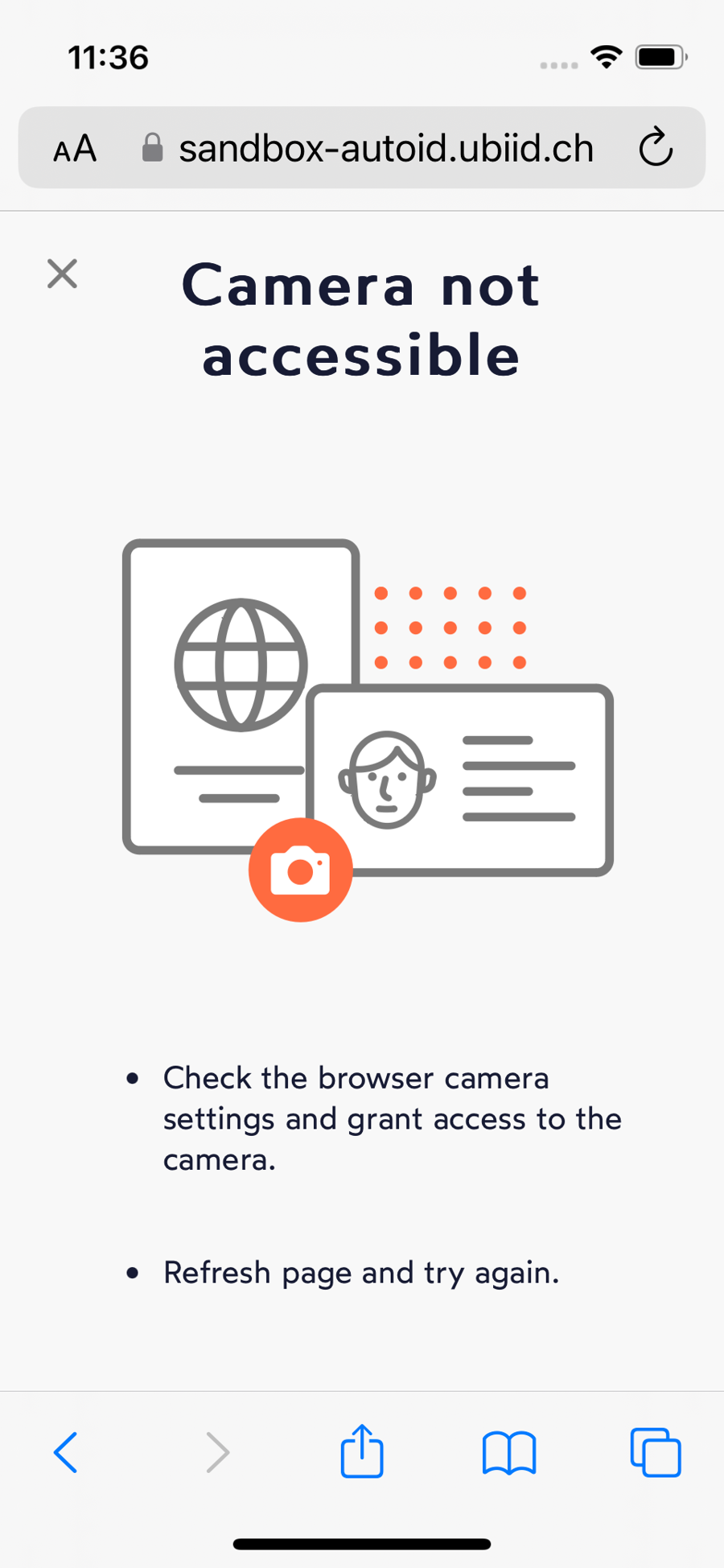
Whenever the process is restarted the first screen with the option to allow the access will be shown.
Deny
When the camera access is denied either in the browser- or app-settings the user will still see the screen this screen.
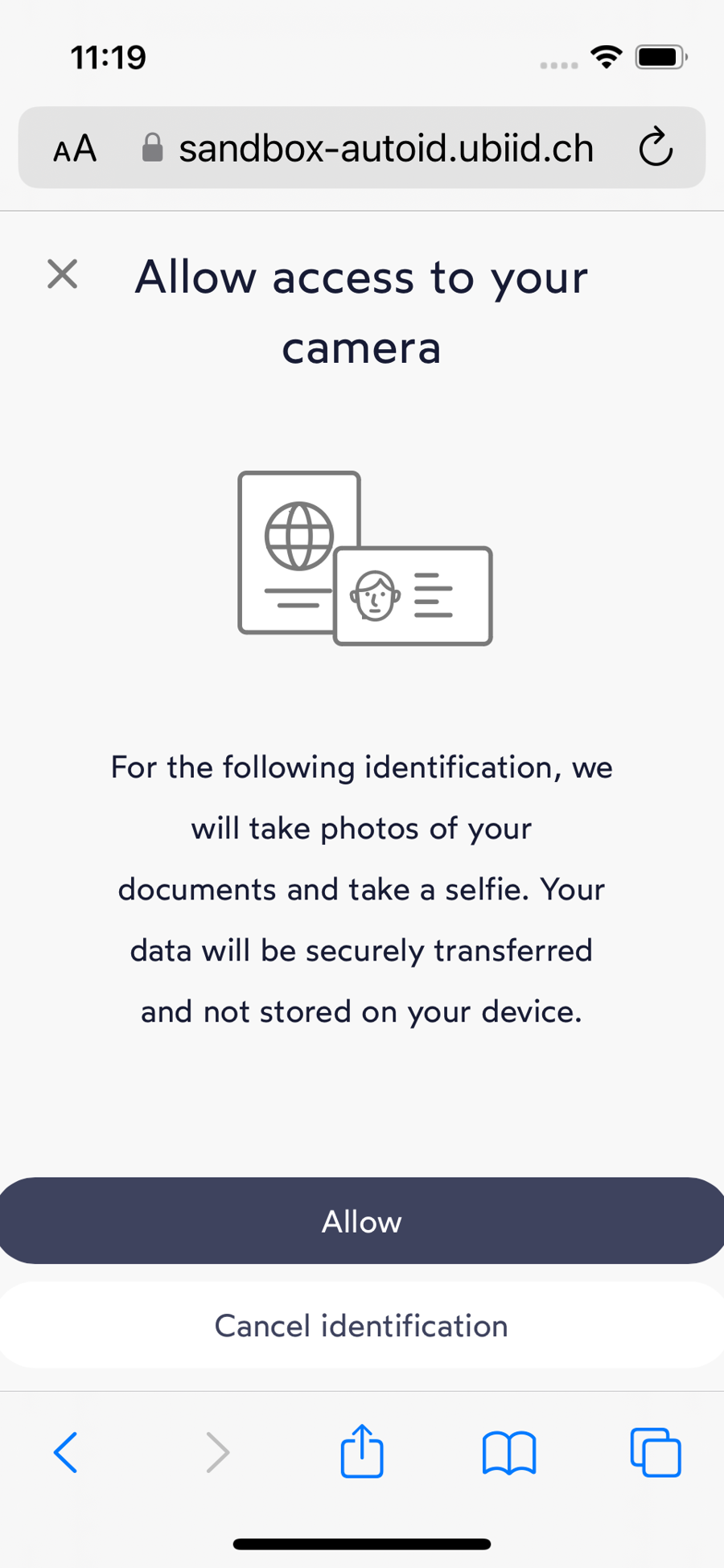
Since the access is denied initially the failure-page will be shown next once the user proceeds with clicking on "Allow".